What Makes TerminalNexus Unique?
Three decades of development experience shaped every feature. TerminalNexus empowers developers and IT professionals to automate workflows, manage commands, and collaborate seamlessly, all from a centralized, user-friendly interface.
Advanced Scheduling
Automate tasks, track output history, and get AI-powered analysis of results.
Custom Command Buttons
Create personalized buttons to simplify complex tasks with one click.
Team Collaboration
Distribute outputs via email, Slack, or Teams to streamline teamwork.
Bring Your Own AI
Use local AI models for privacy or cloud APIs for power. Supports OpenAI, Anthropic, Ollama, LM Studio, and OpenRouter.
Command Analysis
Gain insights by analyzing command outputs to refine workflows and improve results.
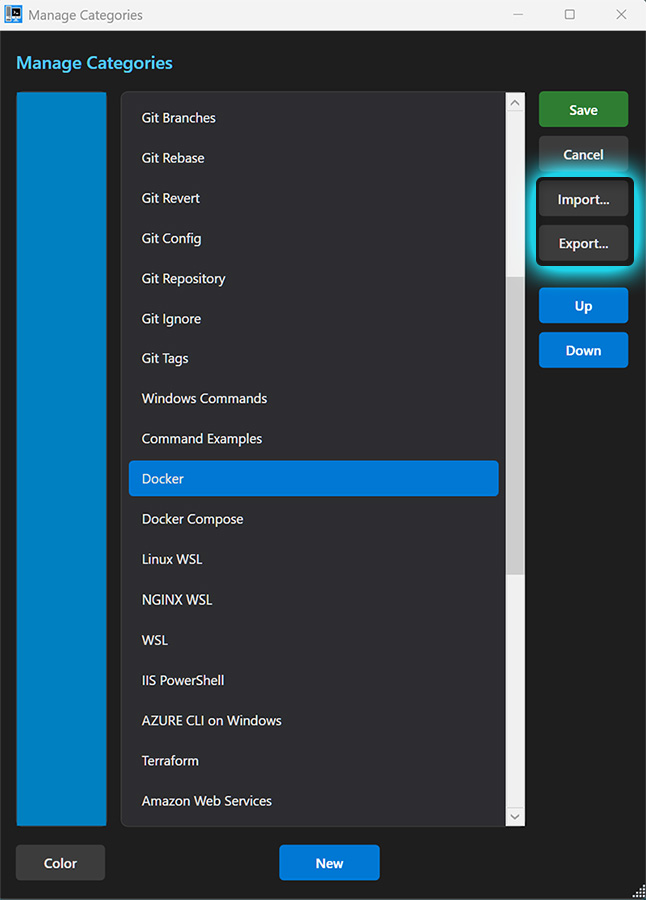
Import & Export Features
Share commands and categories effortlessly with team import/export tools.
Shell Conversion
Convert commands between Bash, PowerShell, and CMD with AI-powered confidence scoring.
History & Persistence
Save Quick Chat sessions, AI explanations, and command history. Re-run commands instantly.
Runtime & Codebase Insights
Detect 59+ runtimes, analyze codebase structure, track outdated packages and NuGet issues.
Custom Command Buttons
Create UI buttons and assign single commands or extensive scripts to them. We understand how difficult it is to remember and keep track of all the commands.
- Assign single commands or group them for complex tasks
- Categorize and color-code all your commands
- 400+ built-in command presets to get you started
- Supports Git, Docker, Azure CLI, AWS, and more
- Add placeholders to capture user input during execution
- Configure prompts before executing sensitive commands
AI-Powered CMD Assist
Made a typo? Get instant fixes. Unsure what a command does? Get AI explanations. CMD Assist detects errors, suggests corrections, and helps you discover related commands—all without leaving the terminal.
- Auto-detect typos and command errors with one-click fixes
- "What Happened?" analysis explains errors in plain English
- Discover command flag options with detailed explanations
- Get similar command suggestions with instant Apply buttons
- Create new command buttons directly from suggestions
- Natural language to CLI command conversion
Assistant Panel
Monitor your system at a glance with the intelligent Assistant Panel. Get real-time insights into system resources, network status, and running processes. AI System Overview highlights critical issues requiring immediate attention.
- Real-time CPU, RAM, disk, and GPU metrics
- Network configuration and security status
- Top processes by CPU and memory usage
- Critical issue detection with severity levels
- EOL and out-of-support runtime warnings
- Outdated package monitoring via winget
- Open ports, shares, and WiFi security status
- Auto-refresh with configurable intervals
- Export as markdown to built-in Documents tab
Team Collaboration
Share your command libraries with teammates and distribute command outputs automatically. Standardize CLI workflows across your entire team.
- Export and import command categories
- Distribute outputs via Email, Slack, or Teams
- Create team member distribution lists
- Standardize CLI development across teams
Command Benchmarking
Measure and compare command performance with built-in benchmarking tools. Get AI-powered analysis of execution times and optimization suggestions.
- Run configurable benchmark iterations
- Compare execution times across commands
- AI-generated performance analysis and insights
- Export benchmark results to documents
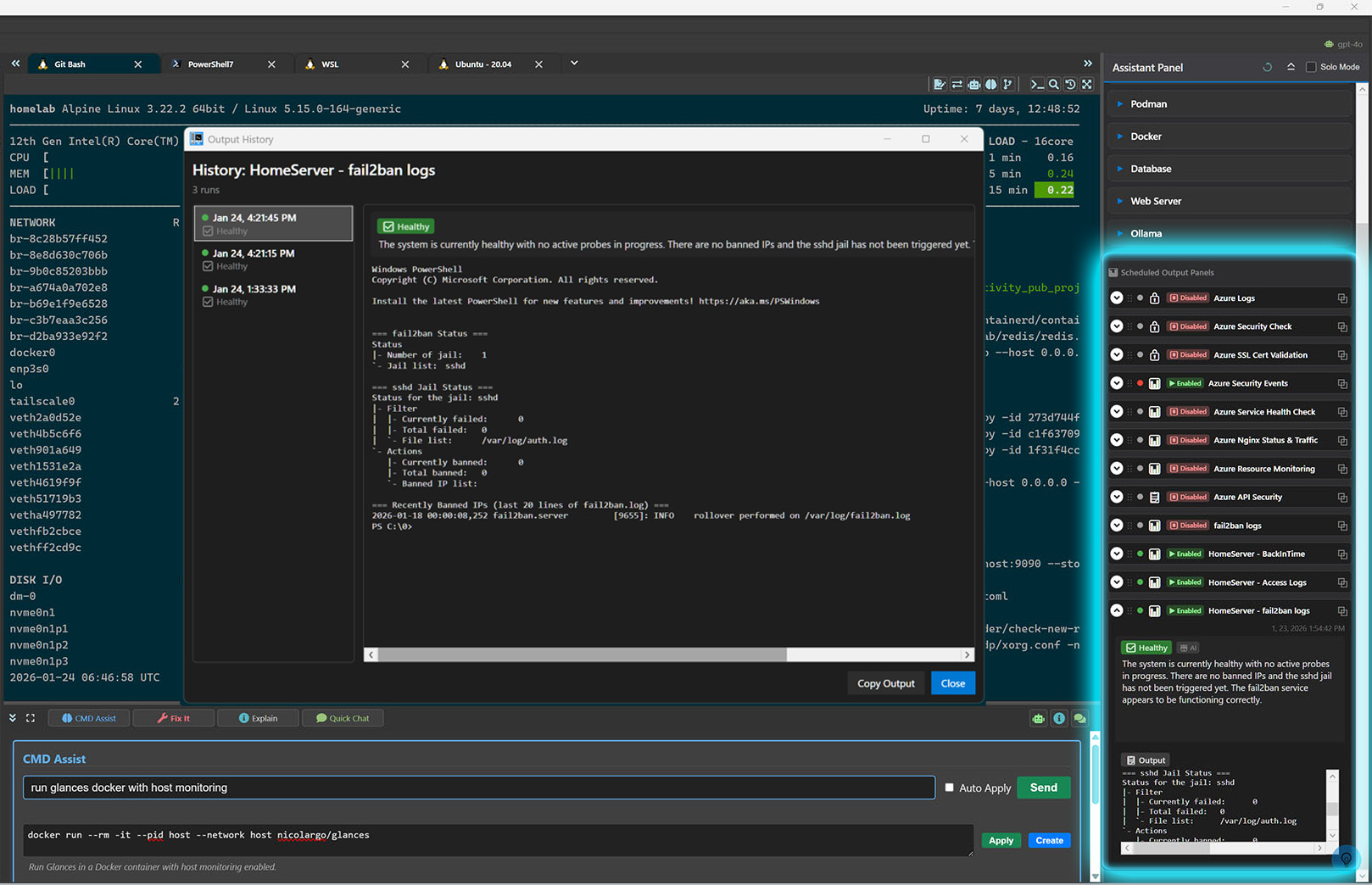
Advanced Scheduling
Run TerminalNexus in the system tray and schedule commands to run automatically in the background. Perfect for recurring tasks, monitoring, and automation. Optionally display results in dedicated Assistant Panel sections for real-time monitoring.
- Schedule commands to run at specific times
- Configurable output panels for quick-glance monitoring
- Browse past runs with configurable output history
- AI-powered analysis with customizable prompts per command
- Distribute outputs via email, Slack, or Teams
Quick Chat with Context
Chat with AI using rich context from your system and terminal. Select system expanders to include live data, or use terminal selection for targeted assistance.
- Include system, security, Docker, database context
- Analyze terminal selection with one click
- Smart suggestion buttons for common queries
- Explain, optimize, or suggest next step instantly
- Save chat history for future reference
Git Security & Commit Workflow
Validate code quality and security standards before every commit. Automate commit messages with AI-generated per-file change summaries.
- Pre-commit security checks for OWASP Top 10 and CWE Top 25
- Configurable security frameworks with individual rule toggles
- AI-generated commit messages with customizable prompt templates
- Per-file detailed change overviews in commit descriptions
- Multiple prompt versions with tone settings (professional, casual)
- AI-generated change overviews per file for modified or committed files
- AI-generated security overview for any previous commit
Shell Command Conversion
Seamlessly convert commands between different shell environments. Perfect for teams working across Windows and Linux or migrating scripts between platforms.
- Convert between Bash, PowerShell, and CMD
- AI confidence scoring for conversion accuracy
- Copy, run, or save converted commands instantly
- AI explanation of conversion differences
- Re-generate with AI for alternative approaches
Custom CLI Menus
Build powerful right-click context menus for your terminal. Access Git operations, custom commands, benchmarking, and file conversions with a single click.
- Built-in Git submenu with diff, stage, unstage, revert
- AI-powered Git file diff summary and overview
- Security vulnerability checks on selected files
- Create custom command menus with icons
- Benchmark commands directly from context menu
- Convert shell syntax via right-click
Runtime & Codebase Analysis
Go beyond basic system stats. Get deep insights into your development environment with 59+ runtime detections and comprehensive codebase analysis.
- Detect 59+ runtimes: .NET, Node, Python, Go, Rust, Docker, and more
- Version update notifications with one-click checks
- Codebase structure analysis with Git insights
- Outdated package detection and NuGet version issues
- Security vulnerability scanning for dependencies
- File handle monitoring across 21 categories
Flexible Terminal Configuration
Configure every aspect of your terminal experience. Create custom shell profiles with personalized colors, fonts, and behavior settings.
- Multiple shell profiles: PowerShell, CMD, Bash, WSL, custom
- Custom background and foreground colors per shell
- Font family, size, and brightness controls
- Custom prompt detection regex for accurate parsing
- Configurable watchdog timeout per shell
- Live terminal preview while configuring
History & Persistence
Never lose valuable information. TerminalNexus saves your Quick Chat conversations, AI explanations, and command history for easy retrieval and re-execution.
- Searchable Quick Chat history with sort options
- Save AI explanations for commands and errors
- Command history with pause/resume capturing
- Re-run previous commands with one click
- Filter by date, alphabetical, or recent first
- Clear and pause history when needed
Variables Manager
Define reusable variables with {{variable_name}} syntax. Store API keys, server addresses, and common values securely and use them across all your commands.
- Three scope levels: Global, Project, and Session
- Secret variables with encrypted storage and masked display
- Enable/disable variables without deleting them
- Smart search with relevance-based sorting
- Export/import variable sets as JSON files
- Use in command buttons, scripts, and startup commands
Frequently Asked Questions
- End-user license agreement
-
Does TerminalNexus support syncing across devices?
Currently, no.
-
How many computers can I install the software on?
You can activate the application on up to two devices using a single activation code.
-
Do I need an Internet connection to use the software?
While most features do not require an Internet connection, certain functionalities, such as AI-based features, require Internet access for processing. Additionally, a connection is required for activation and checking for updates. Your data is not shared beyond what is necessary for these features to function.
-
Does TerminalNexus offer a site license?
Please contact us for site license inquiries.
-
Can I get a refund if I'm not satisfied?
A 14-day free trial is available to ensure you are satisfied before purchasing.
-
What platforms does TerminalNexus run on?
TerminalNexus supports Windows 10 and 11 (64-bit).
-
Does TerminalNexus collect any usage data?
No. TerminalNexus only requires an Internet connection for license verification, updates, and AI-related interactions.
-
Can TerminalNexus run in the system tray for quick access?
Yes, this is the recommended way to use TerminalNexus. It ensures schedules function properly and allows quick access to CLI and the main screen. Enable this feature in the Options menu.
-
Do scheduled commands require the main application to run?
Yes, the application must be running (either normally or in the system tray) for scheduled commands to execute. This can be configured to start with the operating system.
-
What types of commands can be scheduled?
Any commands that do not require user interaction can be scheduled. This feature is ideal for automating repetitive tasks.
Buy
Try TerminalNexus free for 14 days. Buy it only when you're completely satisfied.
Individual License
$59.95
- Free 14-day trial with no commitment
- License valid for use on up to two devices
- 30-day hassle-free money-back guarantee
- One-time payment, no recurring subscriptions
- Includes regular updates at no extra cost