The friendly command center for your servers

Connect to your VPS or home server, run your commands, and fix what breaks, without living in the command line.

  • One-click SSH to your servers, no memorized commands
  • Save the commands you always forget as buttons
  • Plain-English help the moment something breaks
Download for Windows
Free download. No account. Runs on your machine. Windows 10/11 (64-bit).
Built by one developer who has been shipping software for 30 years.
TerminalNexus showing its one-click command buttons for Git, alongside the integrated terminal and AI panels
No account No telemetry Local AI with Ollama or LM Studio Works offline Built for Windows

Connect to your servers in one click

Save your SSH connections and reach your VPS or home server with a click. No keys to re-enter, no commands to memorize.

Never forget complex commands

Keep your commands in a searchable library instead of scrolling shell history.

Understand errors instantly

Paste the error. AI tells you what it means and how to fix it.

who it's for

Made for people who own a server, not a terminal

If you rented a box and the command line feels like a wall, this is built for you.

You rented a VPS

A cheap Hetzner, DigitalOcean, or Linode box is yours, but SSH and the terminal are in the way. TerminalNexus turns the server work into buttons and plain English.

You run a home server

You self-host a few things and you are tired of Googling the same commands every time. Save them once, run them with a click, from one window.

You would rather not live in the command line

You are not a Linux admin and you do not want to become one. You just want your server to do its job without a black screen you are scared to break.

what it does

Five jobs it takes off your hands

Your servers, in one place

Connect over SSH, run your commands, and watch your server's health, without living in the terminal.
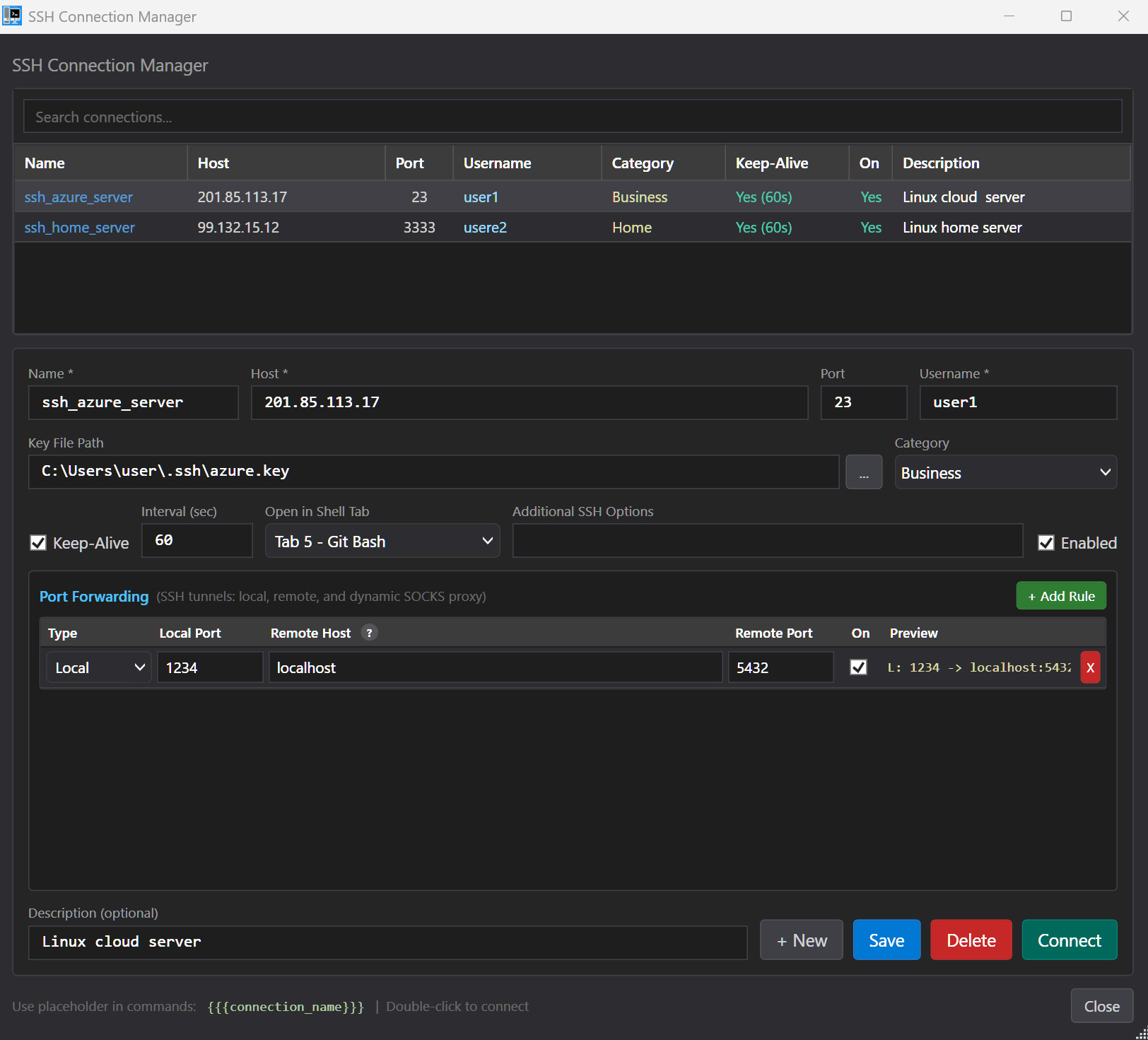
  • Saved SSH connections with encrypted keys, keep-alive, and categories
  • Connect with a double-click, or auto-connect when a project loads
  • Port forwarding and tunnels from a simple form, no ssh -L to remember
  • Turn any button into a remote command that runs on the server
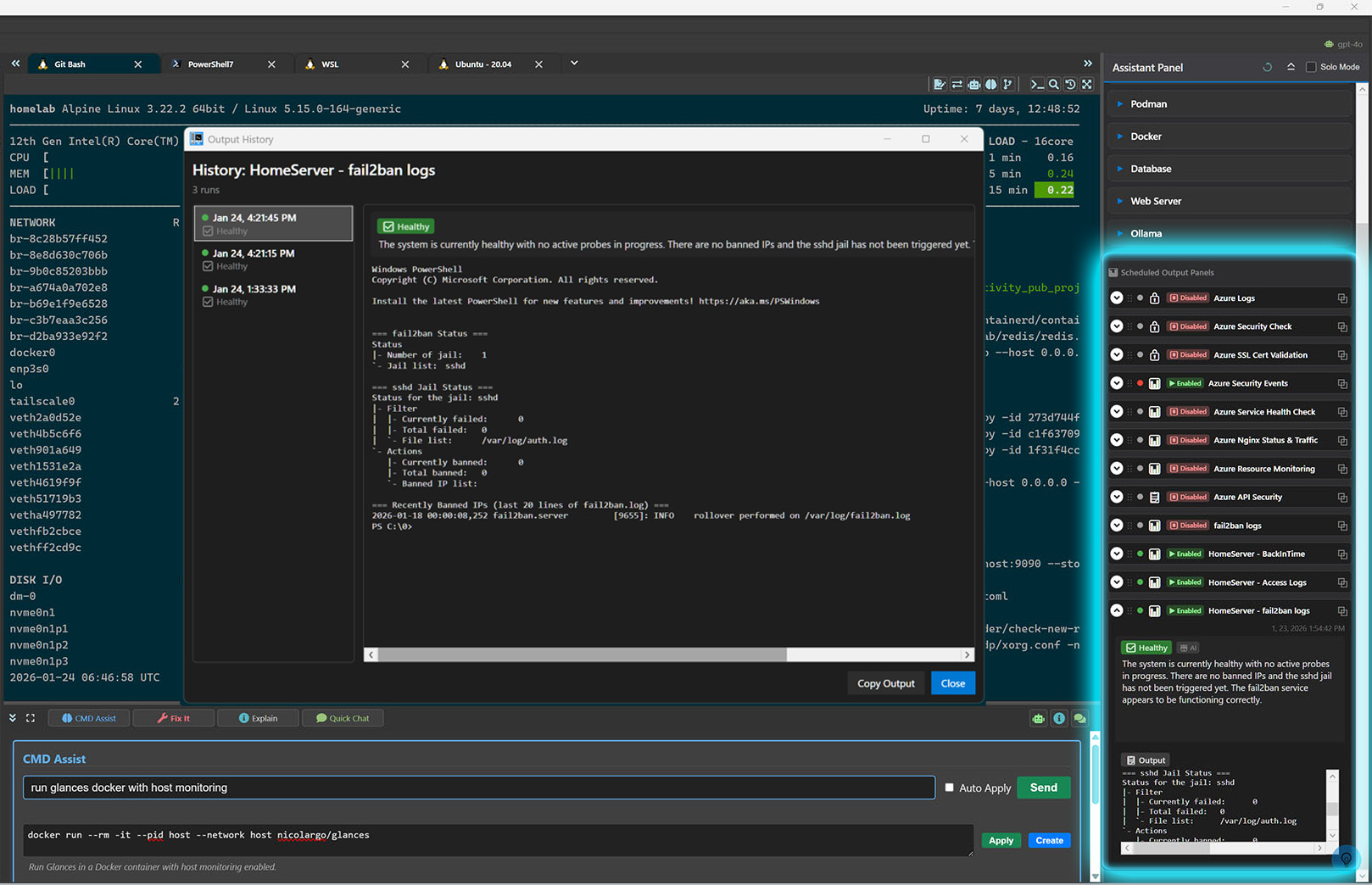
  • Scheduled health checks that SSH in, pull the result back to Windows, and let AI summarize it
The SSH connection manager, with saved server profiles
Scheduled commands that run against a server on a timer

CLI automation

Turn any command or script into a button. Schedule the ones you run on a loop.

  • Custom command buttons for single commands or scripts
  • Script grouping and categorization
  • Scheduled command execution
  • Command benchmarking and performance analysis
  • Variable management with global, project, and session scopes
Custom command buttons

AI terminal assistant

Paste an error and get an explanation. Describe what you want and get the command.

  • Command explanation and error analysis
  • Command suggestion with one-click apply
  • Natural language to CLI command generation
  • Shell command conversion between Bash, PowerShell, and CMD
  • Context-aware Quick Chat with system data

Supports: OpenAI, Anthropic, Ollama, LM Studio, OpenRouter

AI explaining a terminal error
AI Quick Chat panel

Dev environment intelligence

Runtimes, dependencies, CPU, RAM, open ports. Visible without running a single command.

  • Runtime detection for 59+ runtimes
  • Codebase analysis and dependency version checks
  • System resource monitoring (CPU, RAM, disk, GPU)
  • Security warnings and vulnerability scanning
  • Open ports and network insights
The environment assistant panel
Runtime detection panel

Team collaboration

Share your command library so the whole team runs the same workflows.
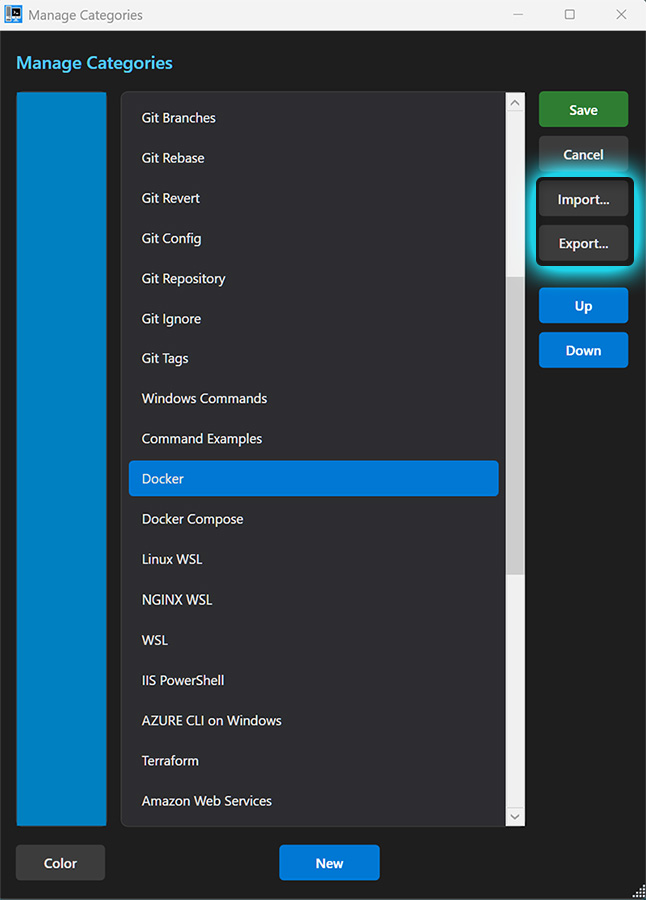
  • Command library import and export
  • Shared command categories
  • Automated output distribution
  • Slack and Teams integration
  • Email notifications
Team collaboration options

git, without the flashcards

All of Git, without typing Git commands

Your VS Code Git panel is fine. TerminalNexus is what you reach for when it isn't. Commit, diff, branch, stash, history, and security scans, all built in. Every action is a menu or a click.

AI Git tools

  • AI commit messages written from your actual diff
  • AI file diff summary in plain English, per file
  • AI diff overview for the whole change at once
  • AI Git change report with rich analysis per commit
  • AI security check that finds secrets and vulnerabilities

Commit workflow

  • Git Commit Flow dialog to stage, commit, push in one
  • Customizable AI prompts to match your team's tone
  • Auto add / fetch / push toggles for the full flow
  • Branch name in message, auto-insert, configurable
  • File extension filter to control what the AI reads
  • Pre-commit security scan: OWASP Top 10, CWE Top 25, secrets

Commit history browser

  • Searchable history to find any commit fast
  • Switch to commit straight from the UI
  • Compare with HEAD or with the previous commit
  • Show Git blame: who wrote what, when
  • Create branch or tag from any commit
  • Revert safely, plus AI reports per commit

Right-click on files

  • View Git file diff, no typing required
  • AI file diff summary: what changed, in English
  • Stage / unstage file with one click
  • Revert file to a previous version safely
  • Create backup branch before risky work
  • AI security check on the file

One-click toolbar

  • Fetch all remotes and show status
  • View last 5 commits
  • Show local / remote branches
  • Quick stash / pop stash and the stash list
  • Show config, .gitignore, remotes
  • Show tags, most recent first

130+ Git command presets

  • Git Research: 40 investigation commands
  • Git Branches: 14 branch operations
  • Git Commit: 13 commit variations
  • Flow, remotes, staging, stash, cherry pick
  • Rebase / revert / tags / config: dozens more
  • All editable, all one-click
Don't install another Git app. Your terminal already has AI commits, security scans, diff summaries, and a full history browser, all without leaving your shell.

more in the box

The stuff that didn't fit above

Shell command conversion

Convert commands between Bash, PowerShell, and CMD with AI confidence scoring.

Runtime detection

Detect 59+ runtimes including .NET, Node, Python, Go, Rust, Docker, and more.

Codebase insights

Analyze codebase structure, track outdated packages, and detect dependency issues.

Security framework checks

Pre-commit security validation for OWASP Top 10 and CWE Top 25 standards.

Benchmarking tools

Measure command performance with configurable iterations and AI analysis.

Context-aware Quick Chat

Chat with AI using live system data, terminal selection, and project context.

Terminal context menus

Custom right-click menus for Git operations, benchmarking, and shell conversion.

Flexible shell configuration

Custom shell profiles with personalized colors, fonts, and behavior settings.

day to day

What people actually use it for

A few common workflows that stop being painful once commands become buttons.

Watch your server's health

Schedule checks that SSH into your VPS or home server, pull back disk, memory, and uptime, then summarize it for you.

Simplify Git workflows

Create buttons for common Git operations and get AI-generated commit messages.

Debug CLI errors faster

AI explains command failures instantly and suggests fixes in plain English.

Run your self-hosted apps

Keep your home server and self-hosted services tidy from one window, without memorizing the commands.

why not just vs code

Why not just use VS Code's terminal?

You already have a terminal inside your editor. Here's what you get when you open TerminalNexus instead.

TaskVS Code terminalTerminalNexus
Explain a cryptic error in plain EnglishNoBuilt in
Turn natural language into a shell commandCopilot, sometimesBuilt in, multi-provider
Save commands as reusable one-click buttonsNo400+ presets + custom
Run commands on a schedule in the backgroundNoYes
Pre-commit security and secret scanningNoOWASP Top 10 / CWE Top 25
AI-generated commit messages from the diffNoYes
Convert a command between Bash, PowerShell, and CMDNoWith confidence scoring
Benchmark command performanceNoYes
Save SSH connections with port forwardingNoYes
Share a command library with your teamNoYes

VS Code's terminal is a window. TerminalNexus is a workshop.

questions

Frequently asked questions

Do I need to know Linux or SSH to use this?
No, that is the point. You set a connection up once with your server's address and key, then everything after that is buttons, menus, and plain-English help. You do not have to memorize commands, and the built-in AI explains anything that goes wrong.
Can I manage my VPS or home server with it?
Yes. Save your SSH connections, reach the box in one click, and run your common jobs as buttons. You can also schedule checks that log in, gather disk, memory, and service status, and summarize it back on Windows, so you keep an eye on the server without living in the terminal.
Does TerminalNexus require internet access?
Most features work offline. Internet is required for AI-powered features (when using cloud providers), license activation, and checking for updates. Your data is not shared beyond what is necessary for these features to function.
What platforms are supported?
TerminalNexus supports Windows 10 and 11 (64-bit).
Can I use local AI models?
Yes. TerminalNexus supports Ollama and LM Studio for fully local AI processing. No data leaves your machine when using local models.
How many computers can I install it on?
You can activate the application on up to two devices using a single activation code.
Does TerminalNexus collect usage data?
No. TerminalNexus only requires an Internet connection for license verification, updates, and AI-related interactions. No usage data or telemetry is collected.
Can I get a refund if I'm not satisfied?
A free version is available so you can evaluate the product before purchasing. If you do purchase, a 30-day money-back guarantee is included.
Does TerminalNexus offer a site license?
Please contact us for site license inquiries.
Can TerminalNexus run in the system tray?
Yes, this is the recommended way to use TerminalNexus. It ensures schedules function properly and allows quick access to the terminal and main screen. Enable this feature in the Options menu.
End-user license agreement

contact

Still have questions?

Reach out below, or email any time.

support@safesoftwaresolutions.com

This site is protected by reCAPTCHA and the Google Privacy Policy and Terms of Service apply.